Showing posts with label Windows. Show all posts

Monday, January 14, 2019

How to change the host url in Host file on Windows

Modifying your hosts file enables you to override the domain name system (DNS) for a domain on a specific machine. This comes in handy when you want to test your site without the test link prior to going live with SSL, verify that an alias site works prior to DNS changes.

The syntax stays mostly the same across in Windows, macOS, or Linux. Generally, most hosts files will have several entries for loopback. Follow the below basic syntax of a host entry.

An entry is divided into 3 parts in following way.

  1. The location to redirect the address to 
  2. The address that you will want to redirect,
  3. The comment. 
This can be separated by a space, but for ease of reading are typically separated by one or two tabs.

Follow below instructions if you are running on WIndows 10 or 8:

  1. Run NotePad or NotePad++ as Administrator.
  2. Open the following file: c:\Windows\System32\Drivers\etc\hosts 
  3. Make the necessary changes to the file.
  4. Go to File > Save your changes.

Sample host file entry for http://localhost/UmbracoDemoApp/
127.0.0.1 UmbracoDemoApp  # Sample host name
127.0.0.1 UmbracoDemoApp.local # Sample host name

Friday, February 10, 2017

How to change font in windows Sticky Notes

This is very simple. You just need to change the registry key to change the fonts in Sticky Notes. I highly recommend that first back up your registry keys before applying changes to it. In case, If you make a mistake that results in your computer not starting properly, but you can restore the registry to previous state. See Restore the Registry.

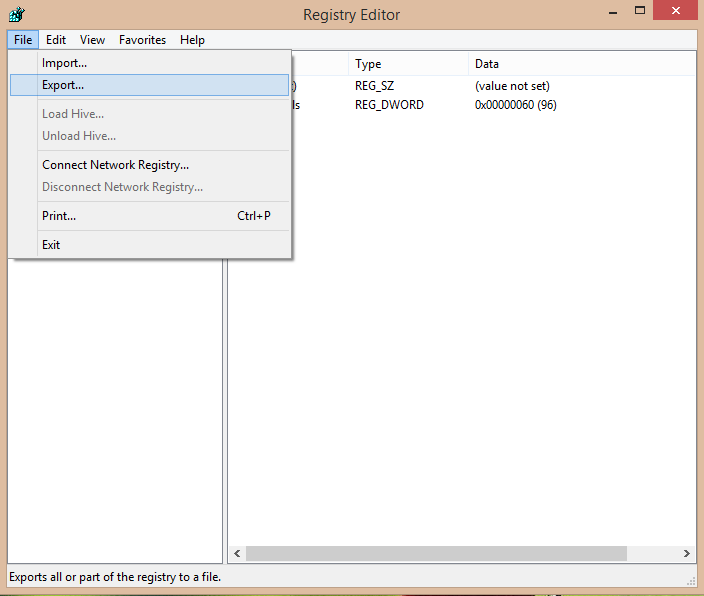
If you are not sure and to be safe, export all or part of the registry. To export registry:
  1. Press Windows + R to open up the Run window. Type "regedit"

2. Navigate to HKEY_CURRENT_CONFIG  -> Software -> Fonts, then Export it.


3. In Save as type, select the file type you wish to use for the saved file (registration file, registry have file, text file, Windows 98/NT4.0 registration file)


NOTE: 
  • Certain parts of the registry are reserved and are not accessible to Regedit.exe. The option to export or import “all” of the registry applies to all of the registry that is accessible to Regedit.exe.


Let's change the fonts:

  1. Open a Notepad.
  2. Paste the below lines on to it.
  3. Replace your preferred font with "Consolas.ttf" and "Consolasb.ttf".
  4. Click Save As in file menu, and save it on Documents or Desktop named as "StickyNotes_Font_Fix.reg". The extension should be .reg.
  5. That's it. Double click on the file to apply changes to the registry.
  6. One last step, Log off from your computer( No need of shut down your computer, just log off/Sign out.)
REGEDIT4

[HKEY_LOCAL_MACHINE\SOFTWARE\Microsoft\Windows NT\CurrentVersion\Fonts]
"Segoe Print (TrueType)"="Consolas.ttf"
"Segoe Print Bold (TrueType)"="Consolasb.ttf"


Restore the Registry in Windows

In case if you messed up with the registry keys, you can simply restore it to the previous state.
  1. Open Registry Editor. (Note: These instructions will not be available after you shut down your computer in step 3. Therefore please take a note before you continue).
  2. Hit Start, point to the right-pointing arrow icon, and then click Shut Down.
  3. Start the computer. When you see the message Please select the operating system to start, press F8.
  4. Use the arrow keys to highlight Last Known Good Configuration and then press ENTER. (Make sure that NUM LOCK must be OFF before the arrow keys on the numeric keypad will function.
  5. Use the arrow keys to highlight an operating system, and then press ENTER.

Friday, June 24, 2016

Disk usage always at 100% in Windows 10

This usually happens me when I open visual studio 2013/2015.

After searching over the internet it was told to disable and stop running the Windows Services called "Superfetch" and "Windows Search" while it seems to have worked perfectly for many, it hasn't for me when I'm working with Visual Studio.

Disabling System Notification also perfectly worked for some people.  going to settings, system, notifications, and turning off "show me tips about Windows. This also makes disk usage 100% to 0%  as I have seen on many forms and threads.

Finally I found a solution which perfectly worked for me when working with Visual Studio. You can try this if non of the above mentioned fixes did not work for you.

Simply Try disabling Code Lens in Visual Studio IDE until a fix arrives.

Tools --> Options --> Text Editor --> All Languages --> Code Lens

Or just kill the ALM shared Remoting task. if it is very high CPU.

Sunday, September 27, 2015

How to delete a file with a path too long for normal delete

I was working with some computer vision source code I found that it creates cache file that has a VERY LONG name and now
I can't delete entire folder due that file.

I tried to rename it to a shorter name but I can't do anything to the file, I also tried to restart my computer and see if it would just go away.

The error message says:
The file name(s) would be too long for the destination folder. You can shorten file name and try again, or try a location that has a shorter path.

After doing lot of things I found an easy way of removing  a file with a path too long to be deleted. So simply


  1. Run cmd as Administrator (you might don't need it).
  2. Change path to the directory that file is located or the parent folder.
  3. I'm using robocopy command to get this done. finally run following commands. Because when you want to completely delete a directory and it has file with long names inside it, robocopy does a VERY good job for you.☺

mkdir empty_dir
robocopy empty_dir the_dir_to_delete /s /mir
rmdir empty_dir
rmdir the_dir_to_delete